> ## Documentation Index
> Fetch the complete documentation index at: https://docs.stackryze.com/docs/llms.txt
> Use this file to discover all available pages before exploring further.
# Getting started
> Create your account, register your first Stackryze Domain, and verify it is active.
This guide walks you through creating your account and registering your first Stackryze Domain.
Stackryze Domains supports four namespaces — `indevs.in`, `sryze.cc`, `ryzedns.org`, and `nx.kg`. The examples below use `yourname.indevs.in`; substitute whichever namespace you registered under.
Stackryze Domains is currently in beta and updated daily. If you find an issue, report it via the support channels at the bottom of this page.
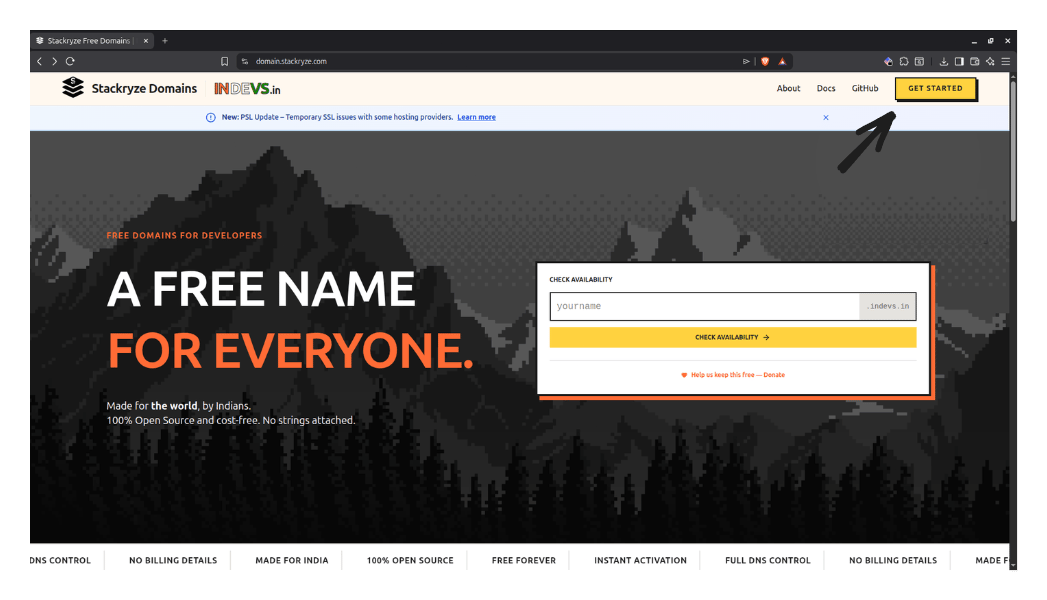
## Step 1 — Visit the registration site
1. Go to [domain.stackryze.com](https://domain.stackryze.com/).
2. Click **Get Started** in the top right.
 ## Step 2 — Create an account
### Option A: Email and password (recommended)
1. Click **Get Started** or **Register**.
2. Enter your **Name**, **Email**, and a secure **Password**.
3. Complete the Cloudflare Turnstile check.
4. Click **Create Account**.
5. We email you a six-digit verification code. Enter it to confirm.
Didn't receive the code? Click **Resend** on the verification page to get a new one.
### Option B: GitHub
New GitHub registrations are paused. To use GitHub login, first create an account with email and password (using the same email as your GitHub account), then link GitHub from the login screen.
If you already have an account:
1. Click **Login**.
2. Select the **GitHub** tab.
3. Authenticate with GitHub.
### Account protection
* **Email verification** is required for every new account.
* After five failed login attempts, the account is locked for 30 minutes.
* Passwords must be at least eight characters.
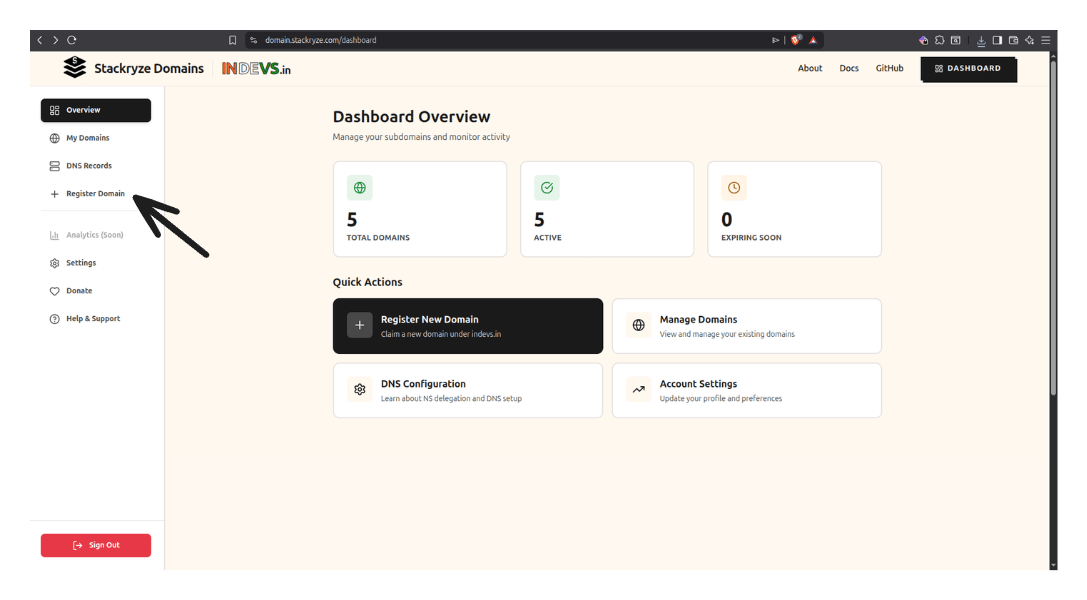
## Step 3 — Open the Register Domain screen
After logging in, click **Register Domain** in the sidebar.
## Step 2 — Create an account
### Option A: Email and password (recommended)
1. Click **Get Started** or **Register**.
2. Enter your **Name**, **Email**, and a secure **Password**.
3. Complete the Cloudflare Turnstile check.
4. Click **Create Account**.
5. We email you a six-digit verification code. Enter it to confirm.
Didn't receive the code? Click **Resend** on the verification page to get a new one.
### Option B: GitHub
New GitHub registrations are paused. To use GitHub login, first create an account with email and password (using the same email as your GitHub account), then link GitHub from the login screen.
If you already have an account:
1. Click **Login**.
2. Select the **GitHub** tab.
3. Authenticate with GitHub.
### Account protection
* **Email verification** is required for every new account.
* After five failed login attempts, the account is locked for 30 minutes.
* Passwords must be at least eight characters.
## Step 3 — Open the Register Domain screen
After logging in, click **Register Domain** in the sidebar.
 ## Step 4 — Complete the registration form
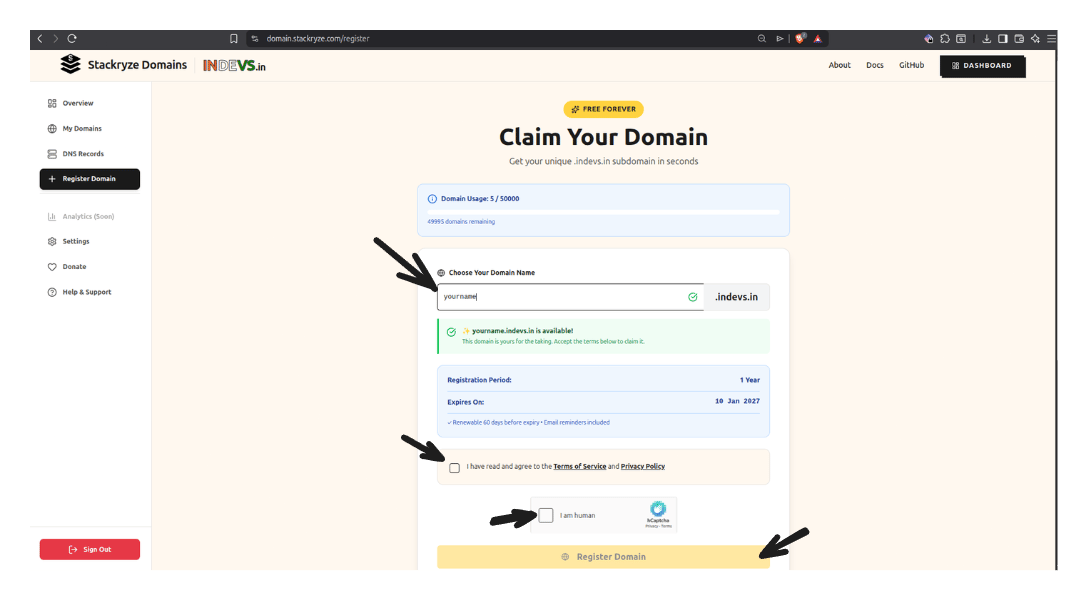 ### 1. Enter your subdomain name
Type your desired subdomain in the input field.
**Rules:**
* **Length:** 3–63 characters.
* **Characters:** lowercase letters, numbers, and hyphens only.
* **Format:** cannot start or end with a hyphen.
**Examples:**
* ✅ `myproject` → `myproject.indevs.in`
* ✅ `john-portfolio` → `john-portfolio.indevs.in`
* ❌ `ab` (too short)
* ❌ `-myproject` (starts with a hyphen)
### 2. Check availability
The system checks availability as you type:
* 🟢 Green checkmark — available.
* 🔴 Red X — taken or invalid.
### 3. Accept the terms
Check the box to accept the [Terms of Service](https://domain.stackryze.com/terms) and [Privacy Policy](https://domain.stackryze.com/privacy).
### 4. Complete the CAPTCHA
Complete the hCaptcha to prove you're human.
### 5. Click Register Domain
Click **Register Domain** to complete registration.
**What happens next:**
* ✅ Your domain is registered immediately.
* ✅ Default nameservers (`ns1.stackryze.com`, `ns2.stackryze.com`) are assigned.
* ✅ Domain is valid for one year.
* ✅ You see a success message.
## Step 5 — You're done
Your domain is now active. From here:
* View it at **My Domains**.
* Set up DNS records with your preferred provider — start with the [Cloudflare guide](/docs/guides/domains/dns-providers/cloudflare).
* Learn how to [manage your domain](/docs/guides/domains/managing-domains).
## Domain limits
You can register up to five domains by default. Subdomain names must be 3–63 characters long.
See the full quotas and how to request a limit increase.
## Need help?
* [Troubleshooting](/docs/guides/domains/troubleshooting) — common errors and fixes.
* [Discord Community](https://discord.gg/wr7s97cfM7) — fastest support.
* [Email Support](mailto:support@stackryze.com).
* [GitHub Issues](https://github.com/stackryze/domains-docs/issues) — bug reports.
### 1. Enter your subdomain name
Type your desired subdomain in the input field.
**Rules:**
* **Length:** 3–63 characters.
* **Characters:** lowercase letters, numbers, and hyphens only.
* **Format:** cannot start or end with a hyphen.
**Examples:**
* ✅ `myproject` → `myproject.indevs.in`
* ✅ `john-portfolio` → `john-portfolio.indevs.in`
* ❌ `ab` (too short)
* ❌ `-myproject` (starts with a hyphen)
### 2. Check availability
The system checks availability as you type:
* 🟢 Green checkmark — available.
* 🔴 Red X — taken or invalid.
### 3. Accept the terms
Check the box to accept the [Terms of Service](https://domain.stackryze.com/terms) and [Privacy Policy](https://domain.stackryze.com/privacy).
### 4. Complete the CAPTCHA
Complete the hCaptcha to prove you're human.
### 5. Click Register Domain
Click **Register Domain** to complete registration.
**What happens next:**
* ✅ Your domain is registered immediately.
* ✅ Default nameservers (`ns1.stackryze.com`, `ns2.stackryze.com`) are assigned.
* ✅ Domain is valid for one year.
* ✅ You see a success message.
## Step 5 — You're done
Your domain is now active. From here:
* View it at **My Domains**.
* Set up DNS records with your preferred provider — start with the [Cloudflare guide](/docs/guides/domains/dns-providers/cloudflare).
* Learn how to [manage your domain](/docs/guides/domains/managing-domains).
## Domain limits
You can register up to five domains by default. Subdomain names must be 3–63 characters long.
See the full quotas and how to request a limit increase.
## Need help?
* [Troubleshooting](/docs/guides/domains/troubleshooting) — common errors and fixes.
* [Discord Community](https://discord.gg/wr7s97cfM7) — fastest support.
* [Email Support](mailto:support@stackryze.com).
* [GitHub Issues](https://github.com/stackryze/domains-docs/issues) — bug reports.